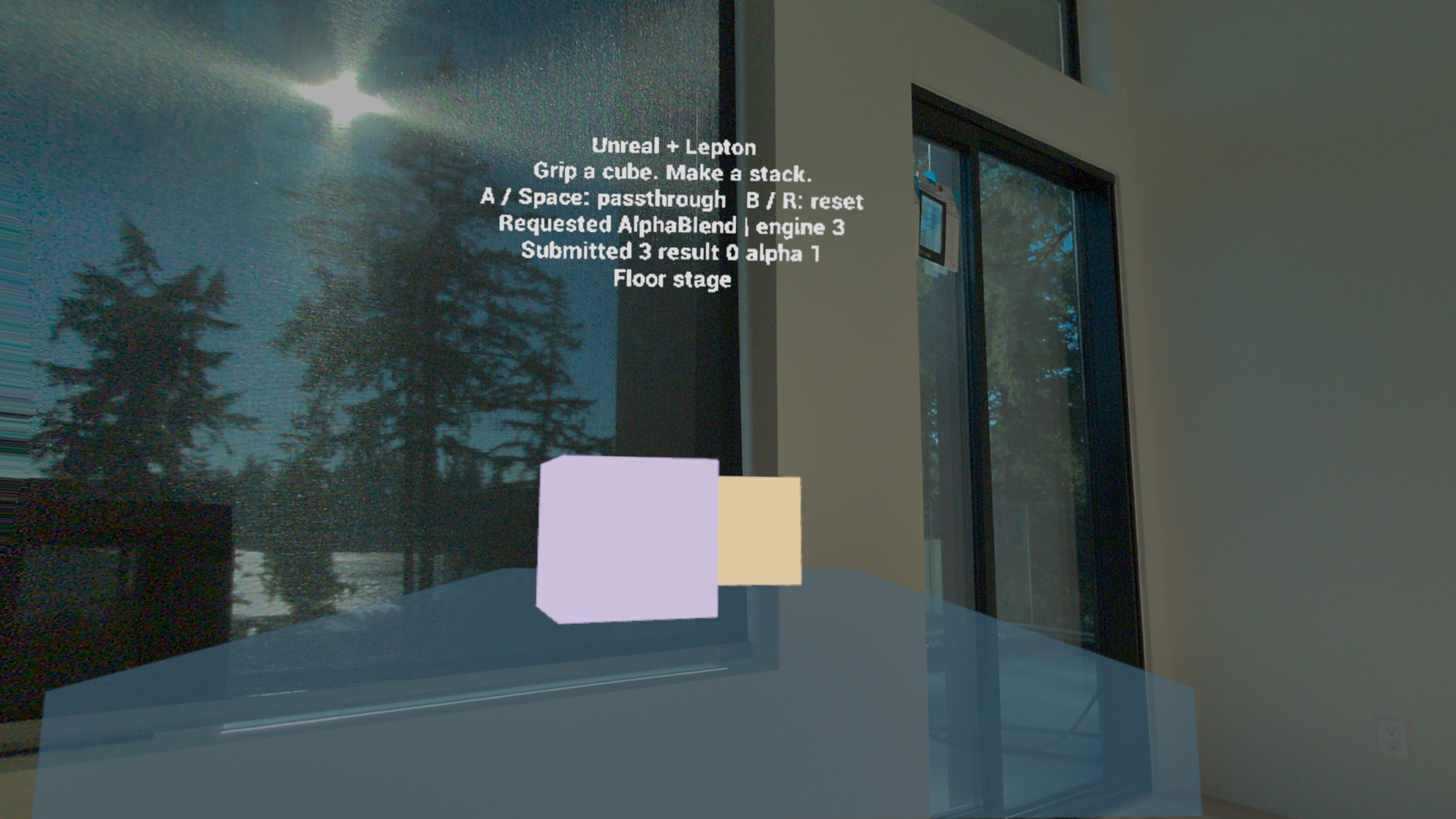
The OpenXR runtime composites the camera background. XR_ENVIRONMENT_BLEND_MODE_ALPHA_BLEND is a core blend mode; no raw camera SDK or separate passthrough extension is required. This route produces an Android APK, not a Linux ARM64 package.
Requirements
| Component | Version / setting |
|---|---|
| Engine | Unreal Engine 5.8.3 · source build with matching host tools |
| Java / NDK | JDK 21 / r27c · 27.2.12479018 |
| SDK / build tools | android-30 and android-36 / 36.0.0 |
| Device API | Minimum, target, and NDK API 30 |
| Target | Android ARM64 · Vulkan ES3.1 · ASTC |
Install SDK platform 36 for compilation; keep the device’s minimum and target API at 30.
01
Install the engine and Android tools
Enable Android in Epic Games Launcher → Installation Options → Target Platforms. Install the SDK, NDK, JDK, and platform-tools above, then set their paths in Project Settings → Android SDK.
Obtain matching engine source through your linked Epic and GitHub accounts. Install its official dependencies and build the host editor and cooking tools. The allocator and renderer changes below require rebuilding Android engine modules.
02
Select Binned2
Create a C++ project. Add this Android configuration to the game Target.cs constructor to avoid the Steam Frame startup allocation crash. Use a source-capable engine; precompiled Binned3 libraries cannot be reused.
// In your game's Target.cs constructor:
if (Target.Platform == UnrealTargetPlatform.Android)
{
    BuildEnvironment = TargetBuildEnvironment.Unique;
    StaticAllocator = StaticAllocatorType.Binned2;
}
03
Configure Android and OpenXR
Enable OpenXR, XRBase, and Enhanced Input. Include Android in OpenXR’s platform allow list. Disable Android File Server. Apply each block to its labeled file, replace com.example.yourproject with your Android package ID, and include your Game Default Map in Maps to Cook.
Use generic controller bindings with built-in OpenXR. For Steam Frame-specific keys and performance features, follow Valve’s Steam Frame OpenXR Extension plugin guide.
; Config/DefaultEngine.ini
[/Script/AndroidRuntimeSettings.AndroidRuntimeSettings]
PackageName=com.example.yourproject
bBuildForArm64=True
bBuildForX8664=False
bSupportsVulkan=True
bSupportsVulkanSM5=False
bBuildForES31=False
bDetectVulkanByDefault=True
bPackageForOpenXRImmersive=True
bPackageForMetaQuest=False
bSkipLibCpp=True
MinSDKVersion=30
TargetSDKVersion=30
SDKAPILevelOverride=android-30
NDKAPILevelOverride=android-30
BuildToolsOverride=36.0.0
bPackageDataInsideApk=True
bEnableBundle=False
bShowLaunchImage=False
bUseExternalFilesDir=True
bAllowIMU=False
; Config/DefaultGame.ini
[/Script/EngineSettings.GeneralProjectSettings]
bStartInVR=True04
Enable alpha and request passthrough
Use a transparent background without an opaque skybox. Use opaque materials for solid objects and translucent materials for see-through surfaces. Apply the renderer settings below to preserve alpha through the mobile pipeline.
Add OpenXRHMD and OpenXR to the Android module dependencies. Call RequestPassthrough(true) on the game thread after the XR session starts. Check runtime support, retain the requested state, and reapply it when the session is recreated. Call with false to request Opaque.
; Config/DefaultEngine.ini
[/Script/Engine.RendererSettings]
r.Mobile.PropagateAlpha=1
r.PostProcessing.PropagateAlpha=True
r.MobileHDR=True
r.Mobile.ShadingPath=0
r.Mobile.AntiAliasing=3
r.MSAACount=4
r.DynamicGlobalIlluminationMethod=0
r.ReflectionMethod=0
r.DefaultFeature.Bloom=False
r.DefaultFeature.AutoExposure=False
r.DefaultFeature.MotionBlur=False
r.DefaultFeature.AmbientOcclusion=False

[ConsoleVariables]
OpenXR.AlphaInvertPass=1
xr.OpenXRInvertAlpha=0
xr.OpenXREnvironmentBlendMode=0
; Config/Android/AndroidEngine.ini
[/Script/Engine.RendererSettings]
vr.MobileMultiView=True#include "CoreMinimal.h"
#if PLATFORM_ANDROID
#include "OpenXRBlueprintFunctionLibrary.h"
#endif
// Call on the game thread after the XR session starts.
bool RequestPassthrough(bool Enable)
{
#if PLATFORM_ANDROID
const auto Mode = Enable ? EOpenXREnvironmentBlendMode::AlphaBlend
: EOpenXREnvironmentBlendMode::Opaque;
if (!UOpenXRBlueprintFunctionLibrary::GetSupportedEnvironmentBlendModes().Contains(Mode))
return false;
UOpenXRBlueprintFunctionLibrary::SetEnvironmentBlendMode(Mode);
return UOpenXRBlueprintFunctionLibrary::GetEnvironmentBlendMode() == Mode;
#else
return false; // OpenXR is enabled here only for Android.
#endif
}05
Fix the UE 5.8.3 mobile alpha resolve
The mobile HDR / multiview / MSAA tonemap subpass forces alpha to 1. Apply these three engine edits to preserve scene alpha and invert it in the final resolve instead of the unused SceneColor resolve. Rebuild the Android renderer and recook shaders.
Engine/Shaders/Private/PostProcessTonemap.usf
// MobileCustomResolve_MainPS: keep the fetched SceneColor.a.
// Remove the assignment SceneColor.a = 1.0;
// Replace OutColor.a = 1.0; with:
OutColor.a = ColorScale0.a > 0.0
    ? (ColorScale0.a > 1.0 ? 1.0 - SceneColor.a : SceneColor.a)
    : 1.0;
Engine/Source/Runtime/Renderer/Private/PostProcess/PostProcessTonemap.cpp
// In the FMobileCustomResolvePS parameter setup:
const float AlphaMode = IsMobilePropagateAlphaEnabled(View.GetShaderPlatform())
    ? (View.Family->EngineShowFlags.AlphaInvert ? 2.0f : 1.0f) : 0.0f;
PSShaderParameters.ColorScale0 = FVector4f(
    Settings.SceneColorTint.R, Settings.SceneColorTint.G,
    Settings.SceneColorTint.B, AlphaMode);
Engine/Source/Runtime/Renderer/Private/MobileShadingRenderer.cpp
// In RenderForward, guard the separate AddAlphaInvertPass call:
if (ViewFamily.EngineShowFlags.AlphaInvert && !bTonemapSubpass)
{
    AlphaInvert::AddAlphaInvertPass(GraphBuilder, MainView, SceneTextures);
}
06
Build and package Android (ASTC)
Set your engine, project, SDK, and JDK paths. Replace YourProject with your C++ target name. Build native modules first, then cook and package a Development APK with the matching host tools.
The shell commands below use RunUBT.sh and RunUAT.sh. On Windows, use Build.bat and RunUAT.bat with the same build arguments. The APK is written to Builds/Android.
export UE_ROOT="/path/to/UnrealEngine-5.8.3"
export PROJECT="/path/to/YourProject/YourProject.uproject"
export ANDROID_HOME="/path/to/Android/sdk"
export ANDROID_SDK_ROOT="$ANDROID_HOME"
export NDKROOT="$ANDROID_HOME/ndk/27.2.12479018"
export NDK_ROOT="$NDKROOT"
export JAVA_HOME="/path/to/jdk-21"
export PATH="$JAVA_HOME/bin:$ANDROID_HOME/platform-tools:$PATH"

"$UE_ROOT/Engine/Build/BatchFiles/RunUBT.sh" \
  YourProject Android Development -Project="$PROJECT" -skipdeploy -NoUBA

# Package after the native build succeeds.
"$UE_ROOT/Engine/Build/BatchFiles/RunUAT.sh" BuildCookRun \
  -project="$PROJECT" -noP4 -unattended \
  -targetplatform=Android -cookflavor=ASTC -clientconfig=Development \
  -skipbuild -cook -stage -pak -package -archive \
  -nocompileeditor -nocompileuat -nocompile \
  -archivedirectory="$(dirname "$PROJECT")/Builds/Android"
07
Install and launch through Lepton
Enable Developer Mode on Steam Frame, connect USB, and start Lepton Development from the headset’s Steam Library. USB adb reaches SteamOS; forward port 5555 to connect to Android. Replace the USB serial, APK path, and package ID below.
Reinstall if the development container is recreated. To add a Steam Library entry, upload the APK with Valve’s Devkit Client and select Runtime → Android.
adb devices -l
# Replace frame with the USB serial shown above.
adb -s frame forward tcp:5555 tcp:5555
adb connect localhost:5555

adb -s localhost:5555 shell getprop ro.build.version.release
adb -s localhost:5555 install -r /path/to/YourProject-arm64.apk
adb -s localhost:5555 shell am start -W \
  -n com.example.yourproject/com.epicgames.unreal.GameActivity
08
Check passthrough
Confirm the room is visible through the background and translucent surfaces while opaque objects remain solid. Check both eyes, passthrough toggling, and session restart. If the view is opaque, check runtime blend-mode support and final eye-buffer alpha, then confirm the renderer edits were rebuilt and recooked.
adb -s localhost:5555 logcat -d | \
  rg 'OpenXR|Vulkan|AlphaInvertPass'