Apps
Spatial video recording and playback, 3D Gaussian scenes, and desktop transfers for Arcturus Vision Camera.
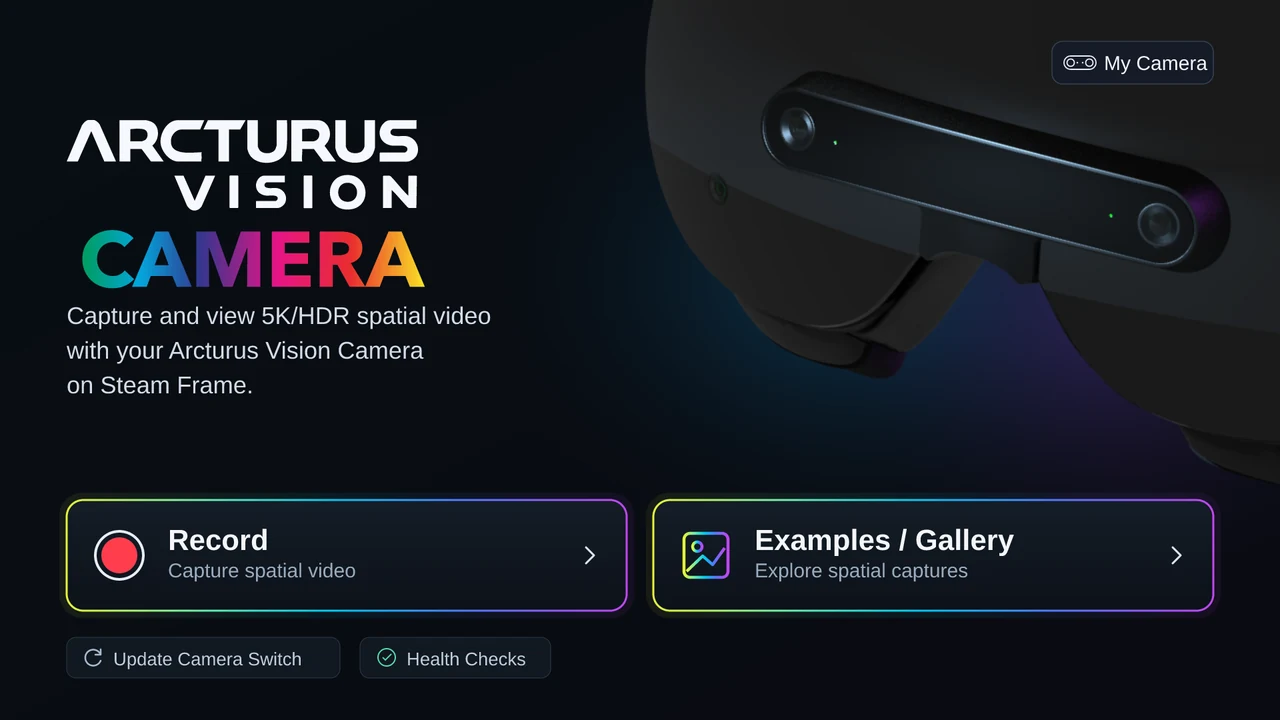
Arcturus Vision Camera
Capture it. Relive it.
Record and view 3D spatial videos with Arcturus Vision Camera on Steam Frame.
- Sample spatial videos included
- Windowed and immersive viewing modes
Arcturus Vision Gaussian XR
Step inside your memories.
Explore 3D scenes on Steam Frame, built with our tools or your favorite Gaussian splatting tools.
- 8 example scenes included
- View your own compatible PLY and SOG scenes
Windows & Mac · Beta Ubuntu & Steam Machine (SteamOS)
Arcturus Vision Sync
Transfer recordings from Steam Frame and convert videos for other headsets and players on your computer.
- Transfer selected recordings
- Skip videos already downloaded
- Convert on Windows, Mac, or Linux (Beta) for Apple Vision Pro, Meta Quest, standard 3D players, and 2D video.
Create a 3D Gaussian scene from your camera recording
Turn a synced Arcturus Vision Camera MP4 into a 3D Gaussian scene for viewing on Steam Frame in Arcturus Vision Gaussian XR.
Spirula Studio: GUI-based
Windows 10/11 · 64-bit · Vulkan-capable GPU with current drivers · Unsigned ZIP
Mac: Apple Silicon · macOS 15+
On Windows, unzip the download and open spirula.exe. On Mac, open the DMG and drag Spirula Studio into Applications.
- Copy the original camera MP4 to your computer with Arcturus Vision Sync.
- Drag and drop the MP4 into Spirula. Choose a new dataset folder and built-in reconstruction, then prepare the dataset.
- Start training. When it finishes, copy splat.ply and splat.xrSceneTransform.json from the final checkpoint folder to /home/steamos/Documents/GaussianXR/ on Steam Frame, then open Gaussian XR to view your scene. To keep several scenes, rename both files to the same new base name (for example, kitchen.ply and kitchen.xrSceneTransform.json).
Linux
The scripts extract and tone-map synchronized stereo images, reconstruct a scene aligned to the recording’s calibration and trajectory, and train at half resolution with a limit of 1.5 million Gaussians. On Linux, Spirula uses its native reconstruction; the LichtFeld workflow uses COLMAP.
1. Download and unpack the scripts
Download the AV1 3DGS PipelineUnzip the download and open a terminal in the folder containing av1_to_3dgs.py. Then follow the instructions for your platform below.
2. Set up and run your workflow
Spirula Studio
LinuxNVIDIA / AMDRequirements
NVIDIA or AMD GPU with a working Vulkan driver.
Build on Linux
Build Spirula from source using the Linux setup in the downloaded scripts README, then install uv. The pinned Linux build has not yet been revalidated; a packaged Linux installer is coming soon.
Optional: export to SOG
For SOG export, install Node.js and then SplatTransform:
npm install -g @playcanvas/splat-transformRun
Choose your synced camera MP4 and a new output folder. From the unpacked scripts folder, replace recording.mp4 and output-directory with your paths, then run:
Train and export PLY (no Node.js required)
uv run av1_to_3dgs.py recording.mp4 output-directory \
    --backend spirula --sfm-backend spirula --no-undistort \
    --spirula /path/to/spirula-studio/build_vulkan/spirula \
    --iterations 30000
Train and export PLY + SOG
uv run av1_to_3dgs.py recording.mp4 output-directory \
    --backend spirula --sfm-backend spirula --no-undistort \
    --spirula /path/to/spirula-studio/build_vulkan/spirula \
    --iterations 30000 --splat-transform splat-transform
Point --spirula to your source-built executable.
LichtFeld Studio
LinuxNVIDIARequirements
For the LichtFeld Studio workflow, you will need:
- An NVIDIA GPU for LichtFeld Studio training: compute capability 7.5 or newer (GTX 16-series, RTX 20-series and up), with NVIDIA driver 570 or newer. LichtFeld Studio requirements
- uv
- COLMAP — Available on your PATH as
colmap - LichtFeld Studio — Available on your PATH as
LichtFeld-Studio
Run
Choose a synced Arcturus Vision Camera MP4 and a new output folder. Replace recording.mp4 and output-directory with your paths, then run:
uv run av1_to_3dgs.py recording.mp4 output-directoryLichtFeld Studio opens so you can inspect training. Add --headless to run without its interface.
3. Output
Without SOG export, Spirula saves output-directory/spirula/scene.ply. With SOG export, it also creates output-directory/scene.sog.
With LichtFeld or optional Spirula SOG export, your model is saved to
output-directory/scene.sog.
LLM prompt
Paste this into an AI assistant with terminal access to work through the full workflow.
View prompt
Turn my Arcturus Vision Camera recording into a 3D Gaussian model for Steam Frame using the instructions below. Ask for my synced MP4, a new output folder, and my computer platform if missing. On Windows or an Apple Silicon Mac with macOS 15 or later, use the Spirula Studio desktop download and drag-and-drop workflow above; the scripts are documented for Linux only. On Linux, Node.js and SplatTransform are optional and needed only for SOG export; omit --splat-transform for PLY-only output. On Linux with AMD, use the documented Spirula Vulkan source-build route. On Linux with NVIDIA, offer Spirula or the documented LichtFeld Studio baseline. The pinned Linux Spirula build has not yet been revalidated. Download and inspect the scripts ZIP and its README, install the appropriate prerequisites, and run the documented command. Preserve my recording and existing outputs; use a new output directory for changed settings and respect the documented resume limitations. Verify the resulting PLY/SOG and report their paths. Help transfer the SOG to the supported Gaussian XR scene folder on Steam Frame and verify the copied file and rendering. Carry out the steps you can and identify anything I need to do. https://arcturus.vision/apps#create-gaussian-model
Need a hand getting started?
Visit support